Qrese AI: automatic review responses
The Qrese AI page controls the assistant that writes and posts responses to your reviews automatically, using your business information to keep answers accurate and on-brand.
Turning it on
- 1. Open the Qrese AI page from the sidebar.
- 2. Flip Activate AI Auto-Response on.
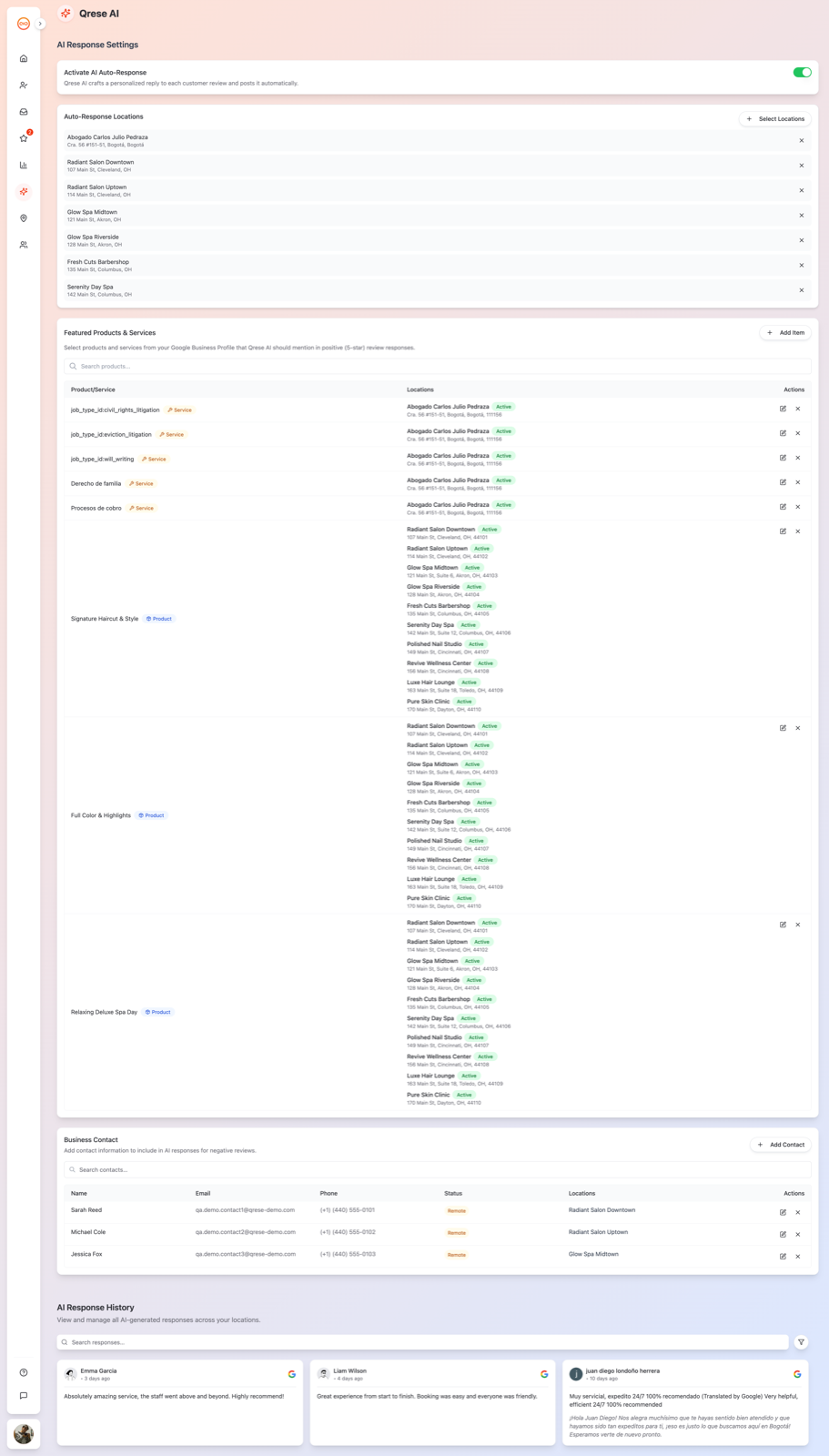
- 3. Under Auto-Response Locations, click Select Locations and choose which locations the AI responds for — or pick All locations. (If you haven't enabled auto-response yet, you'll see *"Please enable auto-response first to select locations."*)
From then on, new reviews at those locations get a thoughtful response automatically. Locations you leave unselected keep manual responses only.
Teaching the AI about your business
Two sections make the AI's answers smarter — they're also used when responding to customer questions:
- Featured Products & Services — list what you offer (Product/Service entries with details). When a review mentions a service, the AI can respond knowledgeably.
- Business Contact — the contact people or channels the AI can point customers to when an issue needs a human (for example, "please reach out to our manager at ...").
Keep both up to date — the AI only knows what you tell it here and what's on your location listings.
Reviewing what the AI has said
The AI Response History section lists every response the AI has posted, filterable by Location, Platform and Time Period, with search and sorting. Use it to spot-check tone and accuracy, especially during your first weeks.
Tips
- Start with one location, read the AI Response History for a few days, then roll out to the rest.
- The dashboard's AI Auto-Response and AI Response Rate cards show at a glance how much of your review volume the AI is handling.