Customizing your review request messages
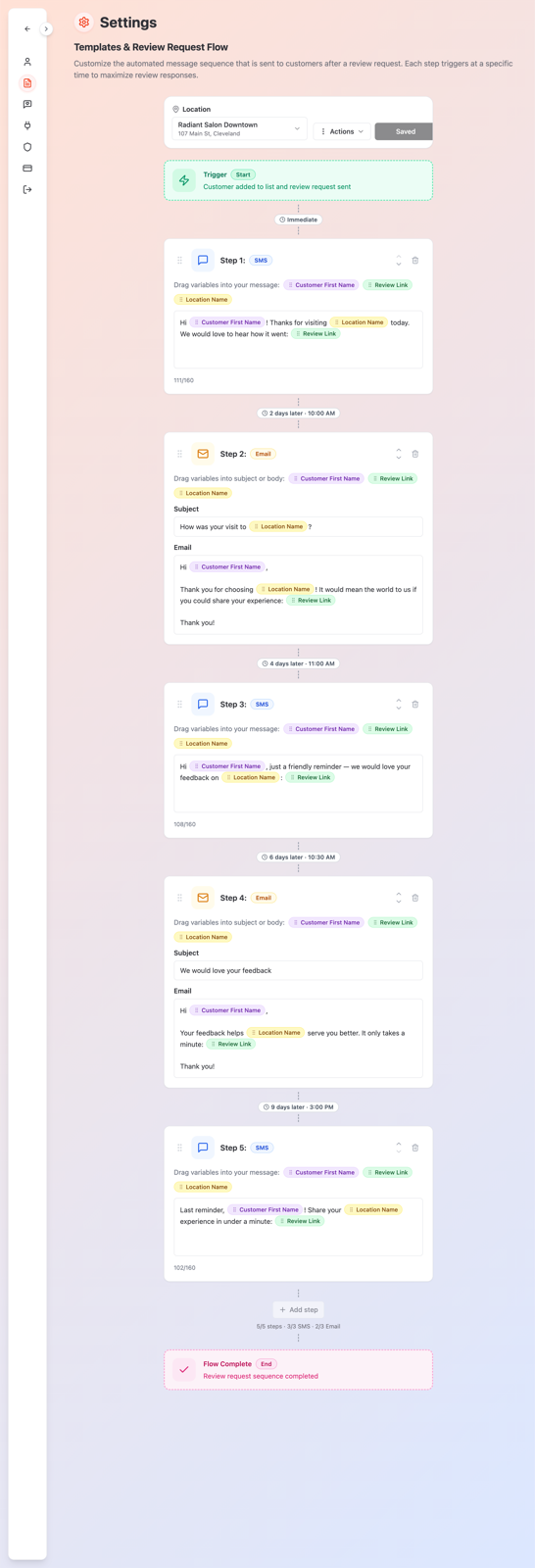
When you send a review request, Qrese doesn't send just one message — it runs a short sequence of texts and emails over several days, stopping automatically as soon as the customer responds. The Templates & Review Request Flow section in Settings is where you control every message in that sequence.
How the sequence works
- Step 1 goes out immediately when the review request is triggered.
- Steps 2–5 are follow-up reminders. Each one has its own day — you can schedule them anywhere between Day 2 and Day 10.
- The sequence stops on its own once the customer opens the link and responds — nobody keeps getting reminders after they've answered.
Editing a message
- 1. Open Settings → Templates.
- 2. Each step shows its channel (text or email) and its day badge (e.g. Day 3).
- 3. Click into a step to edit the message text. Email steps also have a subject line (Enter email subject line...).
- 4. Save your changes. If you don't like your edits, use the reset option to go back to the original wording.
Turning steps on and off
Each step has a toggle. Turn off any follow-up you don't want — for example, keep only Step 1 and one reminder. Step 1 stays immediate; it's the message that carries the review link the moment you request a review.
Changing when a follow-up goes out
Click the day badge on a step (e.g. Day 3) and pick a different day between Day 2 and Day 10.
Testing before you send to real customers
At the bottom you can enter a Test Email Address and a Test Phone Number and send yourself a step to see exactly what customers receive.
Tips
- Keep messages short and personal — they perform better, especially texts.
- Space your reminders out (e.g. Day 3 / Day 6 / Day 9) instead of stacking them on consecutive days.
- Always send yourself a test after editing — it takes ten seconds and catches typos before customers do.