Sending a review request
A review request is a text message and/or email with a personal link where your customer rates their experience — happy customers are guided to leave a public Google review, while unhappy ones share private feedback with you instead.
Before you start
- The customer needs a phone number (for texts), an email address, or both.
- Your review messages come from your review flow settings — you can customize the wording there before sending.
Send a request to one customer
- 1. Go to the Customers page.
- 2. Find the customer and open the row menu.
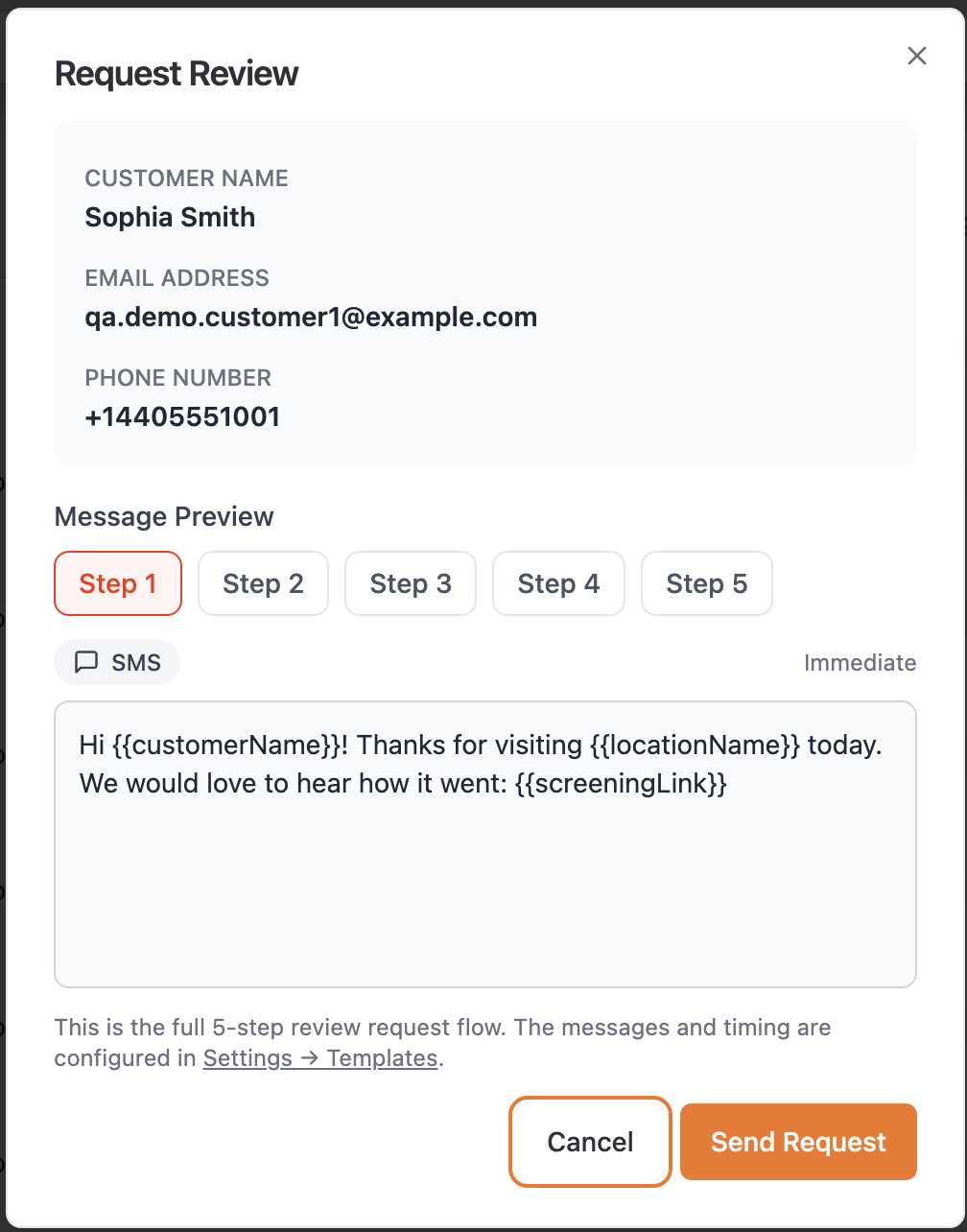
- 3. Click Request Review.
- 4. Review the text and email messages — you can adjust them for this customer before sending.
- 5. Confirm. You'll see *"Review request sent successfully to [customer name]."* and the customer's status changes to Review Requested.
Send requests to many customers at once
Use the import wizard with the Send review requests immediately option — see Importing your customer list.
What happens after you send it
Qrese doesn't stop at one message. If the customer doesn't respond, follow-up reminders go out automatically over the next days, and they stop as soon as the customer opens the link and responds. You can watch progress from the customer's status:
Review Requested → Link Opened → Responded → Reviewed
To see the exact history for one person, open the row menu and click Interaction History — it shows every request sent, when the link was opened, the rating they chose, any private feedback, your responses, and the published review.
Tips
- Texts get opened much faster than emails — make sure phone numbers are filled in.
- If the email shows a bounced or spam warning, Qrese pauses emails to that customer automatically; the text messages still go out.
- Don't re-send requests to someone with status Responded or Reviewed — they already answered.