Managing your customer list
The Customers page is where you see everyone you've added to Qrese, track where each person is in the review process, and take action — like sending a review request or checking their history.
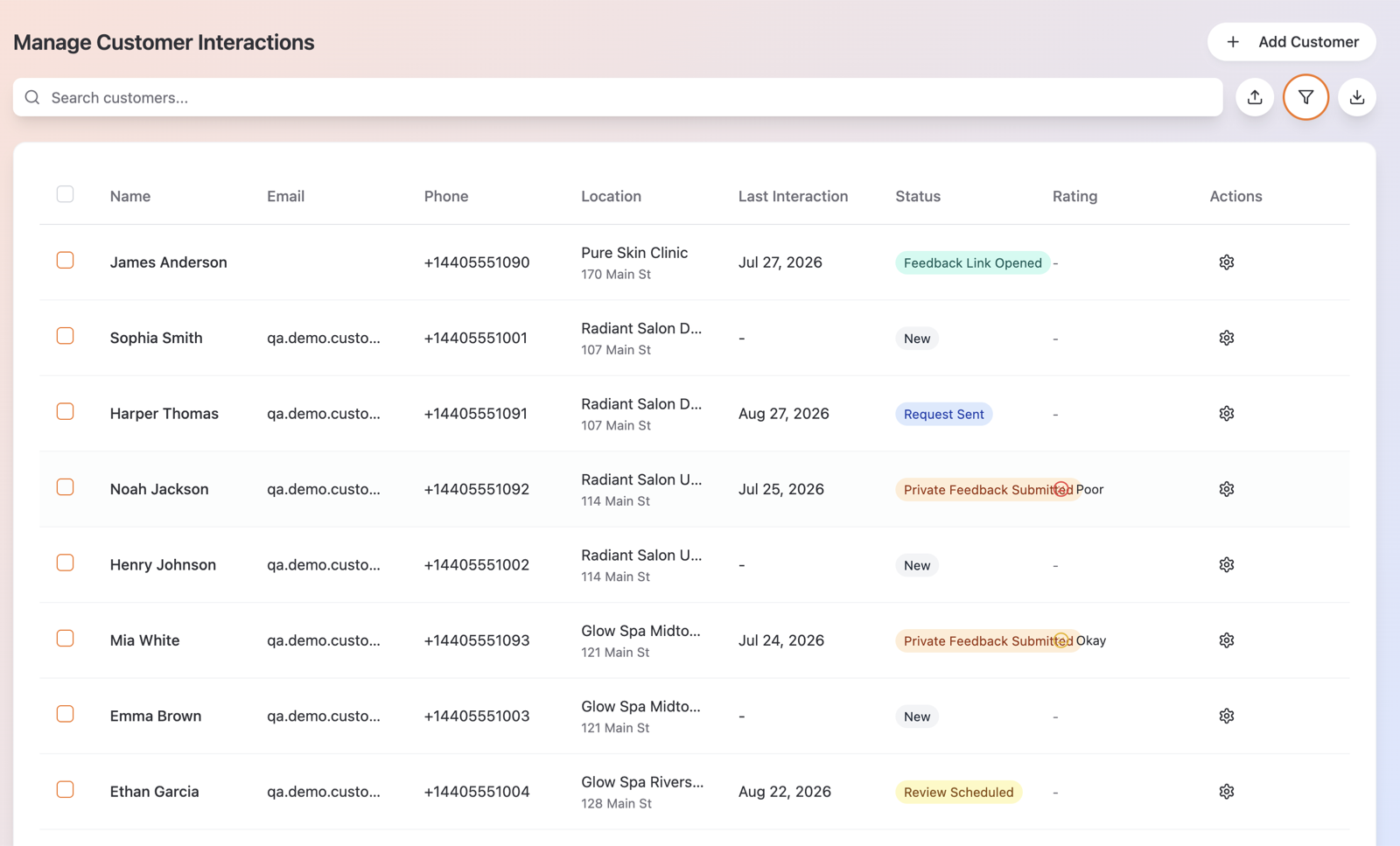
Finding customers
- Use the Search customers... box to search by name, email or phone.
- Click Filter Customers to narrow the list by:
- Status — where the customer is in the review journey (see below).
- Rating — how they rated their experience (Great, Okay, or Poor).
- Location — which of your locations they belong to.
- Last Interaction — last 7, 30, or 90 days, or older.
- Click any column header to sort; click again to reverse the order.
- The list shows 10 customers per page — use the page controls at the bottom to move through it.
What each status means
| Status | Meaning |
|---|---|
| New | Added to Qrese, no review request sent yet. |
| Scheduled | A review request is queued and will go out automatically. |
| Review Requested | The request was sent by text or email. |
| Link Opened | The customer opened their review link. |
| Responded | The customer rated their experience or left private feedback. |
| Reviewed | The customer published a public review. |
Email delivery warnings
Next to a customer's email you may see a warning icon:
- Email bounced — the address couldn't receive our email. Qrese automatically stops emailing this customer; fix the address by editing the customer.
- Marked as spam — the customer flagged a previous email as spam, so Qrese stops emailing them to protect your sending reputation.
Row actions
Open the menu at the end of any row to:
- Request Review — send this customer a review request now.
- Interaction History — see everything that has happened with this customer (requests sent, link opened, rating chosen, private feedback, published review).
- Edit Customer — update their name, email, phone or location.
- Delete Customer — remove them from Qrese.
Exporting your list
Click Export List to download the customers currently shown as a CSV file (name, email, phone, locations, last interaction and status). You can open it in Excel or Google Sheets.
Tips
- If a customer's status seems stuck on Review Requested, check the email warning icons — a bounced address means the message never arrived. Try their phone number instead.
- Filters combine — for example, Status New + Location lets you find everyone at one location who hasn't been asked for a review yet.