Adding a customer manually
You can add customers one at a time — handy after a walk-in visit or a phone booking. For adding many customers at once, see Importing your customer list.
Before you start
- You need at least one location set up in Qrese, because every customer is assigned to a location.
Steps
- 1. Go to the Customers page.
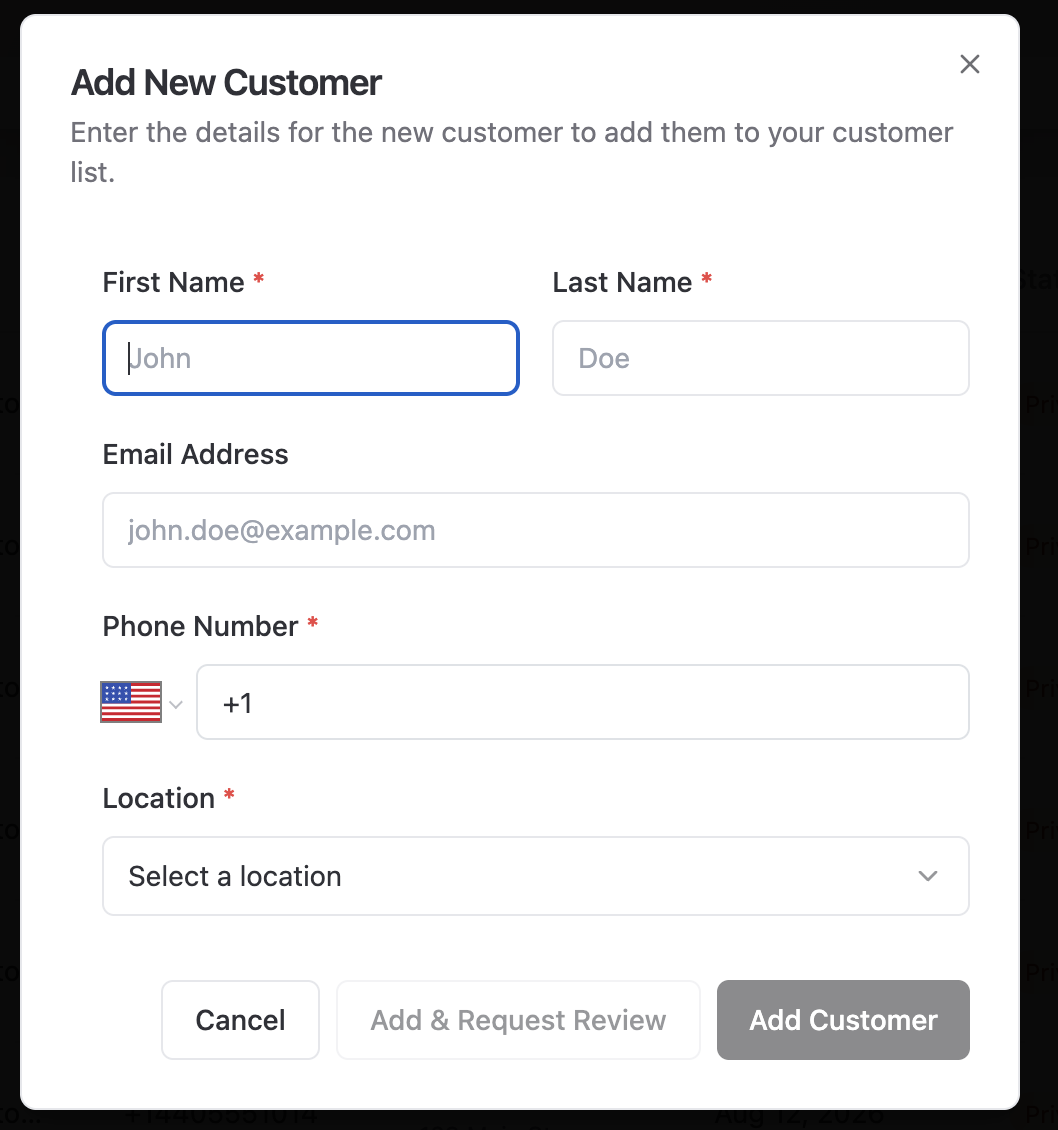
- 2. Click Add New Customer.
- 3. Fill in the form:
- First Name (required)
- Last Name
- Email — for example, john.doe@example.com
- Phone — used for text-message review requests
- Location — choose from Select a location
- 4. Save the customer. They appear in your list with the status New.
A new customer does not receive anything automatically — you decide when to send them a review request. See Sending a review request.
Editing or deleting a customer
- 1. Find the customer in the list (use Search customers... if needed).
- 2. Open the row menu and choose Edit Customer to change their details, or Delete Customer to remove them.
Tips
- Enter phone numbers with area code — for US numbers, Qrese formats them automatically, e.g. (440) 555-0199.
- If an email shows a bounced warning later, edit the customer and correct the address; Qrese pauses emails to bounced addresses.