Responding to Google and Facebook Reviews
The Reviews page brings your Google and Facebook reviews into one place so you can read and reply to them without leaving Qrese.
Before you start
- Your Google Business Profile and/or Facebook Page must be connected to Qrese so reviews can appear here.
- If your business has more than one location, use the location selector next to the page title (it shows Search locations...) to pick the location you want to work with.
A quick tour of the page
On a computer, the page has two panes: your list of reviews on the left and the selected review's details on the right. On a phone or tablet, tap a review to open its detail screen, and use the Back arrow to return to the list.
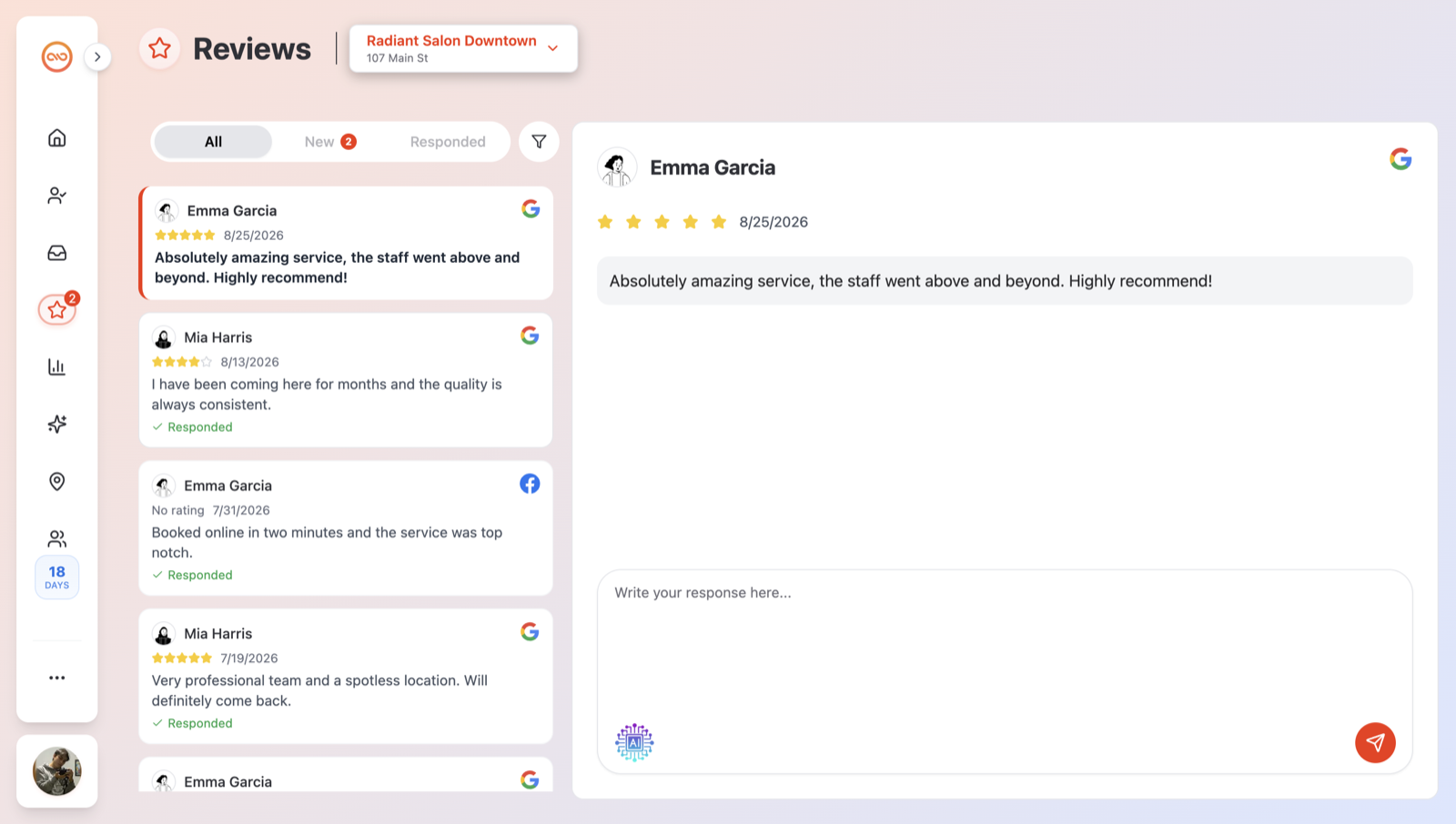
At the top you'll see three tabs:
- All — every review for the selected location.
- New — reviews that haven't been answered yet. A red badge shows how many are waiting (it caps at 99+).
- Responded — reviews that already have a reply.
Each review shows the reviewer's name and photo, the platform logo (Google or Facebook), the review date, and the review text. Google reviews show a star rating; Facebook reviews show a Positive or Negative recommendation instead of stars.
If Google removes a review (for example, for violating its policies), the review stays visible in Qrese with a gray chip that says Removed from Google on followed by the date.
Reply to a review
- 1. Open Reviews and pick your location in the location selector.
- 2. Stay on the New tab (it's selected by default) to see reviews that still need an answer.
- 3. Click a review in the list to open its details.
- 4. Type your response in the box that says Write your response here....
- 5. Click the red send (paper-plane) button.
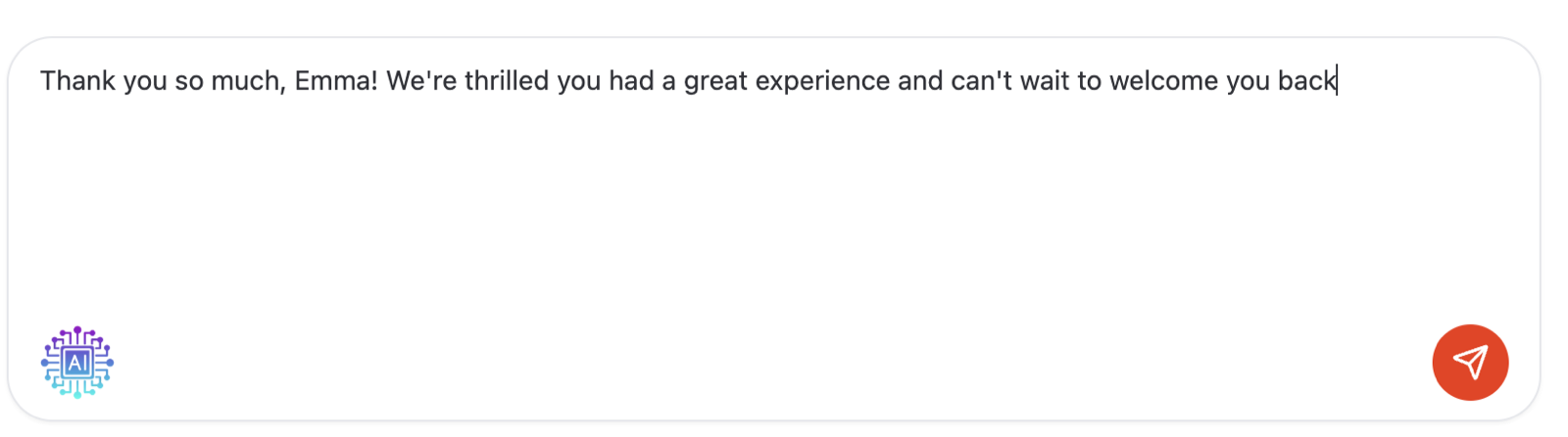
Your reply is posted publicly on Google or Facebook — whichever platform the review came from. The box clears, the review moves to the Responded tab, and the New badge count goes down.
One formatting note: bold and italic characters like **, *, and _ are removed before posting, since Google and Facebook show replies as plain text.
How sent replies look
Under an answered review you'll see your reply in a bubble with Sent on and the date. Click Options under the bubble to see who responded — for example Responded by: followed by a team member's name, or Responded outside Qrese if the reply was written directly on Google or Facebook.
Troubleshooting and tips
- One reply per review. Google and Facebook allow only one response per review. If a reply already exists, Qrese won't post a second one — to change your answer, delete the existing reply first (see *Deleting or changing a review reply*).
- The send button does nothing? A reply can't be empty — type your message first.
- Reply didn't go through? If sending fails, your text stays in the box so nothing is lost. Wait a moment and click send again.
- Can't find a review? Check the filter icon next to the tabs — a red dot on it means a filter is active. See *Filtering and sorting your reviews*.
- Qrese currently supports reviews from Google and Facebook only.