Review Insights: your AI-generated action plan
Review Insights: your AI-generated action plan
The Review Insights page turns your reviews — and the private feedback customers leave through your screening flow — into a full AI-written analysis with concrete, prioritized actions for your business.
Before you start
- The analysis needs at least 1 review (or piece of private screening feedback) in the chosen time period.
- Generating a brand-new analysis can take a little while — you'll see a spinner with Analyzing reviews... during that time.
Open the page
- Click Review Insights in the sidebar, or click View Full Analysis in the Dashboard's AI Customer Feedback Summary.
- The 30 Days tab loads by default. If no analysis exists yet for this location and period this month, the AI generates one on the spot — wait for the Analyzing reviews... spinner to finish.
- Switch tabs — 60 Days, 90 Days or All Time — to analyze other periods. Each period has its own analysis.
What you'll see
Analysis Summary — a Total Reviews: N badge, sentiment bars (**Positive:**, Neutral:, Negative: with percentages) and a narrative paragraph summarizing customer feedback.
Then four sections (each appears only when the AI found something to report):
- Key Trends — colored badges highlighting the main themes running through your reviews.
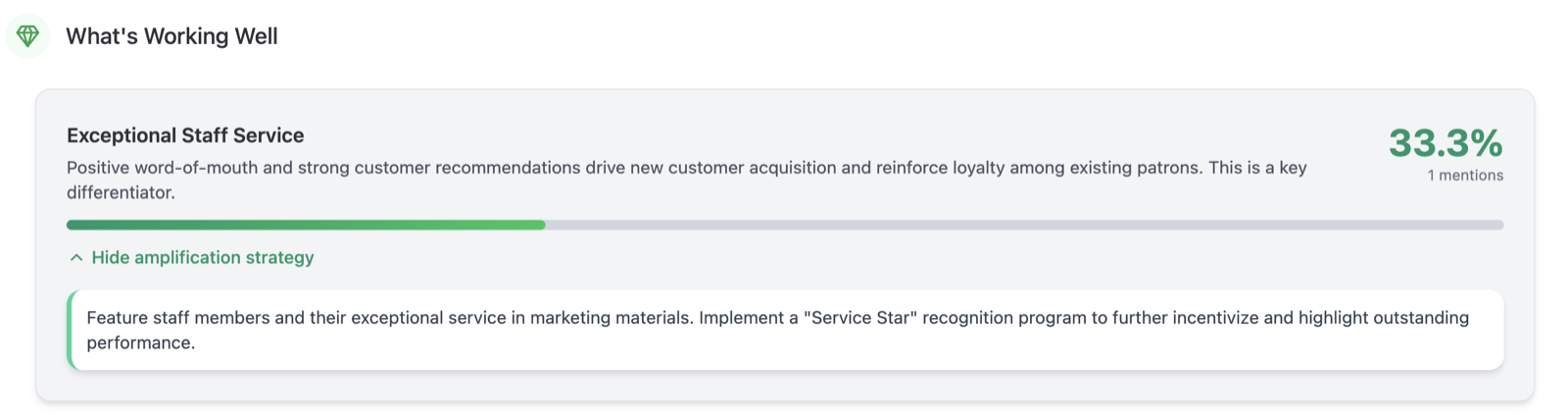
- What's Working Well — cards for your strengths: a theme, a description, the percentage of reviews mentioning it and the number of mentions. Click Show amplification strategy on a card to see the AI's suggestion for getting even more mileage out of that strength (click Hide amplification strategy to collapse it).
- Areas for Improvement — cards for problem themes, each with an urgency badge (critical, high, medium or low), a Root Cause: explanation, and how often it's mentioned. Click Show business impact to expand an explanation of what this issue could cost you.
- Recommended Actions — a prioritized to-do list. Each card has a High, Medium or Low priority badge, a Goal:, an Expected outcome: and an Estimated impact:.
How often it refreshes
Each analysis is a monthly snapshot: once generated, it's kept for the rest of the calendar month and regenerates automatically the next month. There is no manual refresh button, so reviews written after the analysis was generated won't appear in it until the next monthly refresh. For a more current pulse, the Dashboard's AI Customer Feedback Summary refreshes daily.
Tips
- Start with Recommended Actions — it's the AI's shortlist of what to fix first, already ranked by priority.
- If Areas for Improvement shows "Great news! No significant areas for improvement identified. Keep up the excellent work!", your reviews aren't surfacing recurring complaints for that period.
- Use the location selector next to the Review Insights title to run the analysis for another location.
Troubleshooting
- "Insufficient Data for Analysis" — the period has too few reviews. The card suggests: "Try selecting a different time period or check back once more reviews have been collected."
- "No recommended actions available at this time." (or similar empty messages in other sections) — the AI didn't find enough material for that section in this period. Try a longer period.
- The page shows the insufficient-data card even though you have reviews — occasionally a generation doesn't complete. Try again later, or pick a different period tab.