Creating your Qrese account
Creating your Qrese account
Signing up walks you through a guided setup that creates your account, connects your business pages, and gets your first location ready — usually in under 15 minutes.
Before you start
- Have access to the Google account that manages your Google Business Profile.
- Optional but recommended: access to the Facebook account that manages your business Page.
The setup steps
- Your details — enter your First Name, Last Name and E-mail. By continuing you accept the Terms of Service and Privacy Policy.
- Verify your email — we send a 6-digit code to your inbox; type it in (**Enter 6-digit code**).
- Your phone — enter your phone number and verify it with another code sent by text.
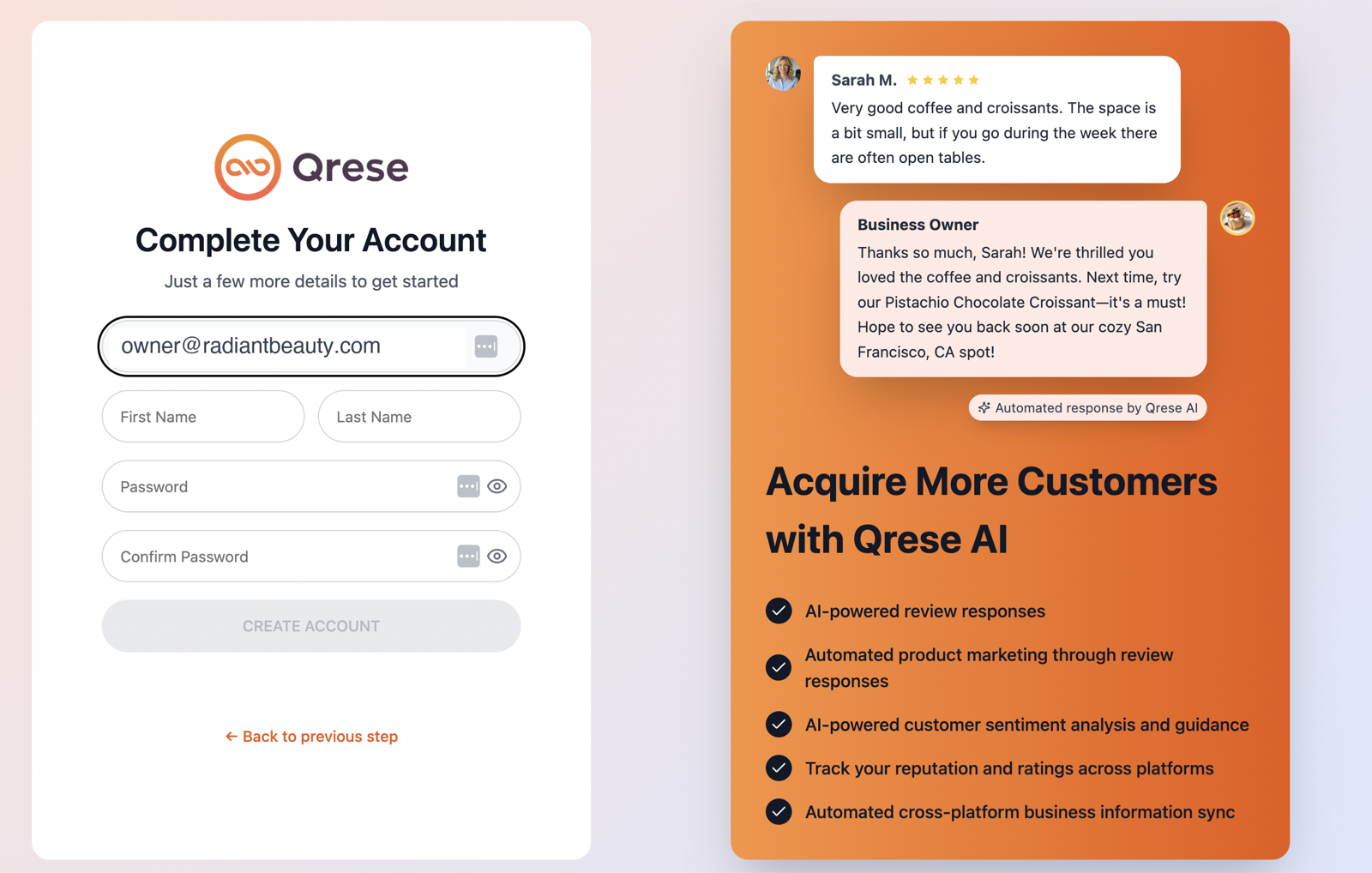
- Create a password — choose a password and confirm it. The strength meter helps you pick a strong one.
- Connect Google — sign in with the Google account that manages your Business Profile and allow access, then select your business page(s).
- Connect Facebook — sign in and pick your Facebook Page(s), or skip and add Facebook later.
- Match your profiles — Qrese pairs each Google page with its Facebook page so they feed the same location. Review and confirm the matches.
- Confirm your locations — check the location summary that will be created.
- Teach the AI about your business — add your featured products/services and business contact info so review responses and customer answers are accurate. You can edit all of this later on the Qrese AI page.
- Choose your plan — start your trial or pick a plan. When you finish, you land on your new Dashboard. 🎉
Troubleshooting
- Didn't get the email code? Check spam, and make sure the address is typed correctly.
- "No Google Business Profile was found on that account." — sign in with the Google account that actually manages your listing (it may be a different one than your personal Gmail).
- Joining a team instead of creating a business? You don't need this flow — ask your admin to invite you, then follow the link in the invitation email to set your password.